Python
The Python plugin enables seamless interoperability between Python and the ImFusionSuite.
Configuration
Important
Before starting to configure the plugin, please verify that ImFusionPython is listed among the Available Plugins in the ImFusionSuite logs (at the Info log level). Please note that the ImFusionPython plugin may require a specific extra license.
The Python plugin can be enabled in the ImFusionSuite’s Settings under the Python tab.
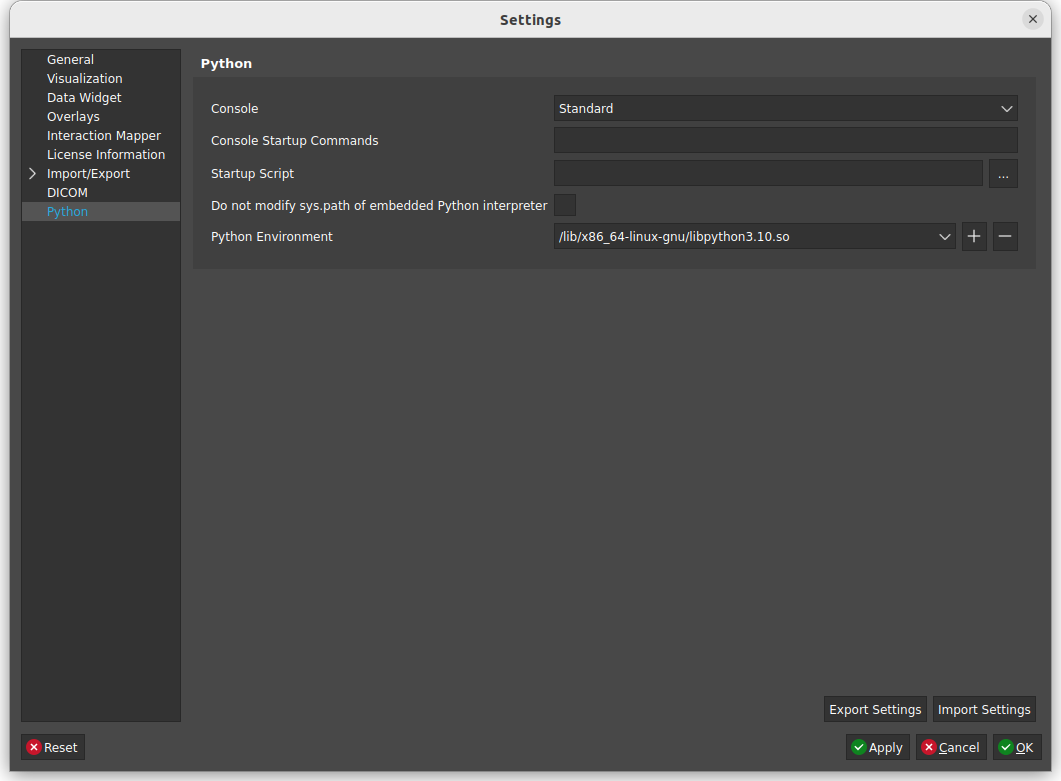
The configuration parameters are:
Console: the type of the integrated Python interpreter.
Console Startup Commands: start-up commands which are executed every time that the interpreter starts.
Startup Scripts: path to a Python script that is executed every time that the interpreter starts.
Do not modify sys.path of embedded Python interpreter: whether the Python plugin is allowed to modify sys.path to locate the imfusion module.
Python Environment: the path to the Python interpreter that should be used by the Python plugin.
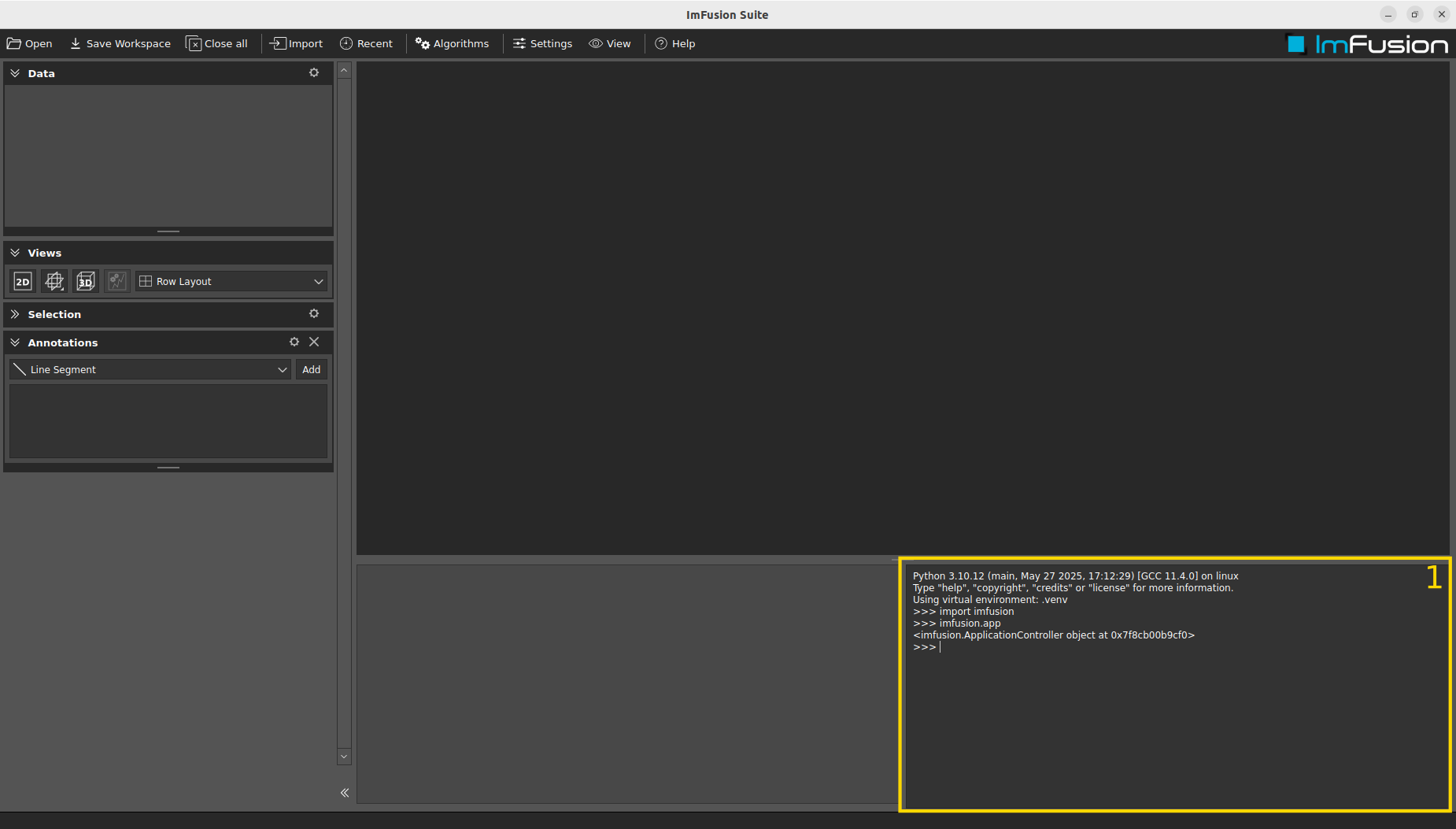
When the configuration has been successful (please note that a restart of the ImFusionSuite may be necessary), a Python interpreter (1) should appear on the bottom right of the ImFusionSuite. If not, please check the log messages that are reported by the ImFusionSuite, verify the additional information available in the imfusion-sdk’s Python package installation instructions or visit our ImFusion Forum.
Warning
Currently, only the imfusion python bindings that are included with an ImFusionSuite installer are supported. This means that at the moment the interoperability between the ImFusionSuite and the public imfusion-sdk python package is not supported. For additional information, please visit the ImFusion website or the imfusion-sdk’s Python package documentation.
Warning
When the imfusion Python module is not available, the interoperability between the ImFusionSuite and Python will be highly limited because Python will not be directly connected to the ImFusionSuite.
Integrated Python interpreter
Python commands can be inserted and evaluated in the integrated Python interpreter, as in any Python interpreter. In general, the packages that are available to the Python plugin are the same packages that are available for the Python interpreter that has been set in the ImFusionSuite’s Python settings.
When the imfusion-sdk Python package is available, it can be imported to access the data or annotations that are currently available to the ImFusionSuite. This mechanism allows, for example, to run scripts on data, which can become very efficient since it can automate some of the repetitive work that may be required on the ImFusionSuite.
To interact with the ImFusionSuite instance directly from Python, we can retrieve the ImFusionSuite instance as app under the imfusion package:
import imfusion
imfusion.app
The ImFusionSuite app is an ApplicationController Python object. As a quick overview, it provides the following features through Python:
Workspace saving or loading.
Control or extension of the ImFusionSuite GUI.
Management or processing of data and annotations.
Creation of algorithm controllers (in the sidebar).
Execution of algorithms.
To get started with these features, please refer to our imfusion-sdk’s Python package documentation page. We also provide tutorials for these features in our public Python demos repository on GitHub.
Running Python scripts
With the Python plugin, the ImFusionSuite offers the possibility to load and run Python scripts. This is possible through a few alternative ways:
Clicking Python Script under the Import menu of the ImFusionSuite.
Dragging and dropping a Python script file from a folder directly into the ImFusionSuite.
Launching the algorithm Import > IO > Python Script under the Algorithms menu of the ImFusionSuite.
If a script was recently loaded, the script can also be found under the Recent menu of the ImFusionSuite.
If the script import is successful, the script is fully executed. If the Python script defines algorithms or operations, as it is shown in our public Python demos repository on GitHub, the corresponding algorithms or operations become available within the ImFusionSuite:
In the case of algorithms, they can be found when the currently selected data is compatible (also refer to Running Algorithms on Data):
As Loaded Algorithm Name under the Algorithms menu of the ImFusionSuite.
By right-clicking the desired data and then choosing the desired algorithm.
In the case of operations, they become available to the Machine Learning > Execute Operations algorithm and can be selected in the combo box of its controller.
When selecting an imported algorithm, an algorithm controller gets opened in the ImFusionSuite, which allows manual configuration and execution. UI elements for these algorithm controllers are automatically generated based on their associated algorithm configuration (please also refer to our python documentation for further details).

Generating Python code
The ImFusionSuite supports the generation of the Python code that repeats the current history of executed algorithms. This feature allows to generate the Python code after a successful prototyping session, which can reduce the cost of developing processing pipelines. For this purpose, a record of all the executed algorithms is available in the Workspace Editor under the Views button, which supports automatic generation of the equivalent Python code.
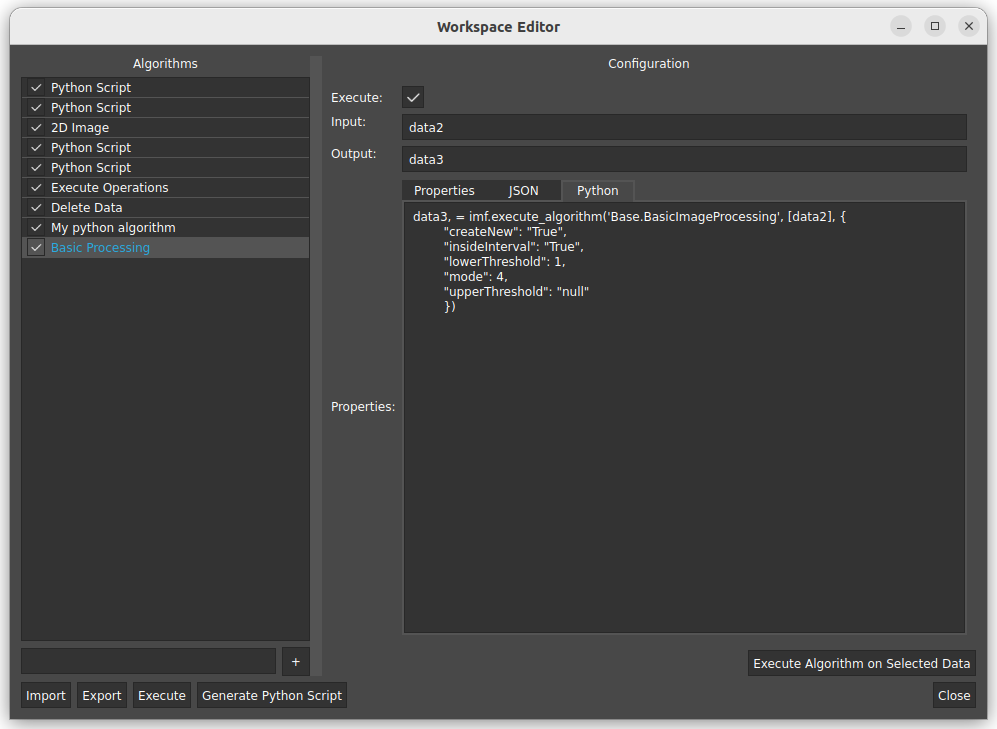
As it can be seen in the view above, the equivalent Python code is available under the Python tab of each step. Besides, it is possible to click Generate Python Script that generates an entire Python script for reproducing the full history of executed algorithms, which can then be executed again later.
Note
The python scripts generated using the functionalities described above are meant for stand-alone execution and do not utilize the app ApplicationController.