
Visualizing Data#
The method show() allows to launch a detached window, also referred to as visualizer, that displays
Data (e.g., a SharedImageSet), or a list of Data, or the
content of the file at the given path location.
As an example, a list of Data is obtained when loading an image from disk using load().
Afterwards, the image can simply be displayed by calling show() and passing that list of data to it:
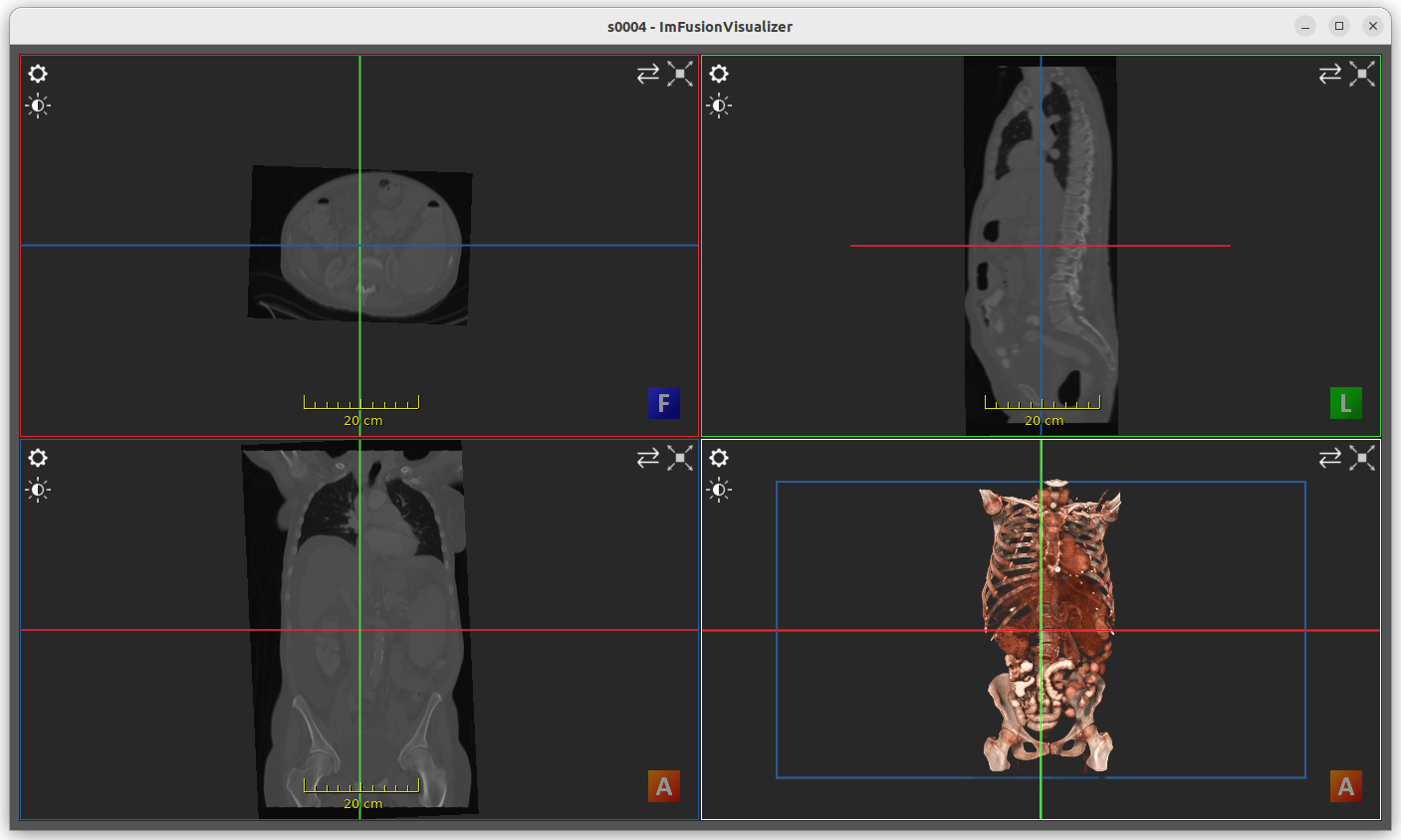
An ImFusionVisualizer instance#
By default, show() will block the thread when it is invoked in a script (.py file) or via python -c.
Otherwise, e.g. when it is invoked in a Python console, it will not block the thread. This default behavior can be
overridden by setting the block argument of show() to True / False explicitly.
Furthermore, show() returns a VisualizerHandle instance that allows to inspect some basic
information or to close the visualizer when needed:
All open visualizers can be closed simultaneously with close_viewers(). To see which visualizers are currently
open, use list_viewers(), which returns a list of VisualizerHandle objects.
Views#
The visualizer adapts its views automatically based on the inputs passed to show():
>>> import imfusion
>>> us_sweep = imfusion.io.load(path_to / "us_sweep.imf")
>>> us_sweep_labels = imfusion.io.load(path_to / "us_sweep_labels.imf")
>>> ct = imfusion.io.load(path_to / "ct_s0004.imf")
>>> imfusion.show(us_sweep + us_sweep_labels + ct, title="Combined Data", block=False)
<imfusion.gui.VisualizerHandle object at...>
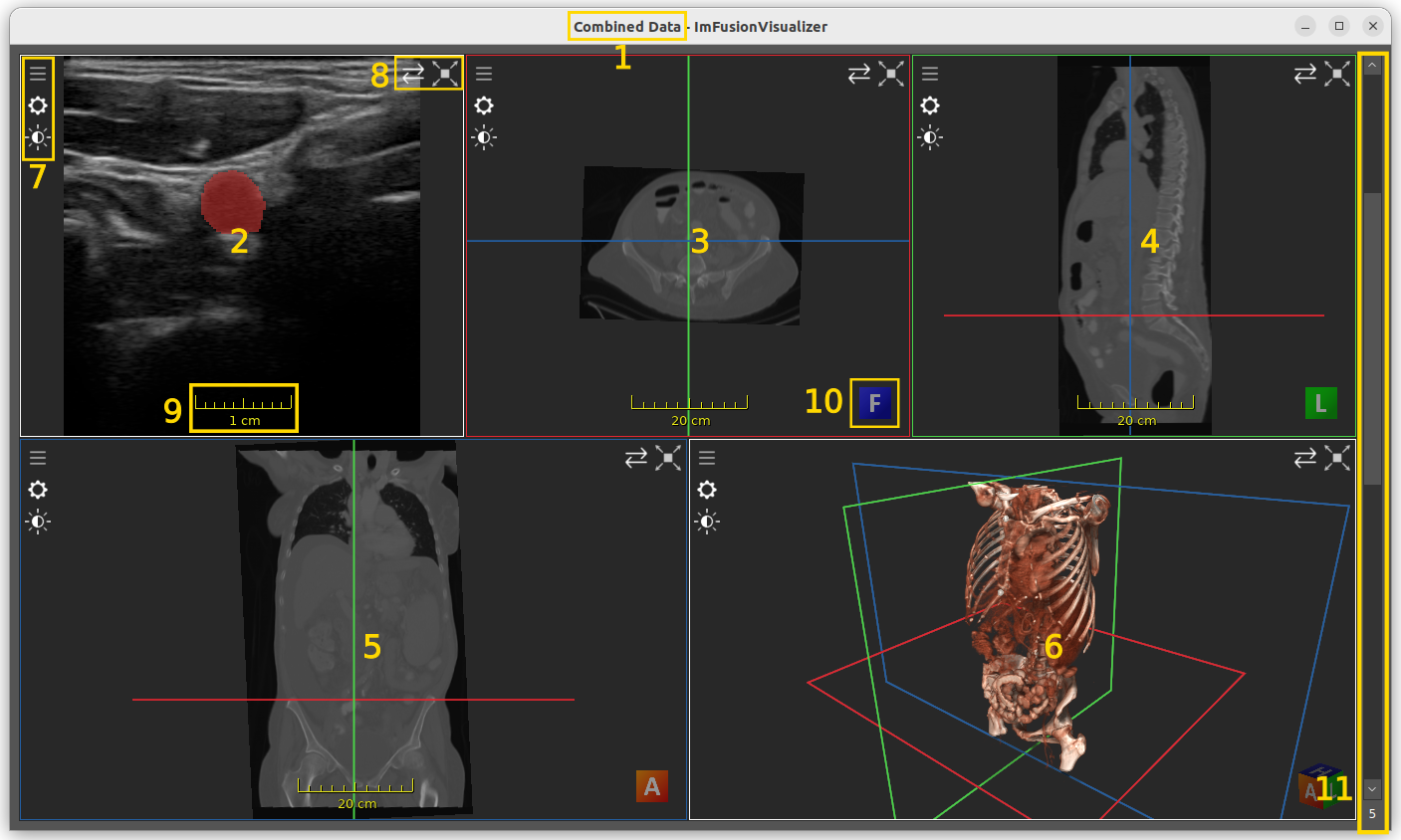
View adaptability of the ImFusionVisualizer#
In the figure above, the following GUI elements can be identified:
Window title prefix (1): the window title prefix can be assigned when calling
show(), otherwise retrieved from the name of the first inputData. There will be no title prefix when both of them are empty.2D view (2): this is a simple 2D representation containing all of the given 2D images. The 2D view is displayed only when there is at least one 2D input present.
Slice views (3, 4 and 5): also referred to as MPR (multiplanar reconstruction), slice views display 2D representations of 3D images across a certain plane. The slice views with the red, green and blue borders respectively represent the axial, sagittal and coronal planes. The slice views are displayed only when there is at least one 3D volume present.
3D view (6): this is a volumetric representation of 3D images using a perspective projection. The 3D view is displayed only when there is at least one 3D input present. Meshes and point clouds are also displayed in the 3D view.
View content settings (7): these buttons allow to control which data is visualized and how. The top-most button is the Data Selection Button, which appears whenever one of the views can display more than one data, and allows to hide or to select back specific data. The button in the middle is the View Options Button and allows to configure the associated View. The last button is the Windowing Menu Button, which is used to map the high dynamic range of medical data to the available range of the display in order to visualize specific structures.
Views positioning settings (8): these buttons allow to rearrange the views or to focus on specific ones.
Meter (9): the meter, which appears whenever the data defines an associated metric (which is inferred from the metadata of the data itself), measures the physical size of the data.
Orientation mesh (10): it clarifies the current perspective of the 3D scene. The letters on the cube faces are: H (head) and F (feet), A (anterior) and P (posterior), R (right) and L (left).
Views scrollbar (11): the scrollbar, which appears whenever any of the data contains a sequence, allows to select one specific frame. When data is scrolled, all the data that has been currently selected (which can be modified by using the Data Selection Button) is scrolled simultaneously. Just below the scrollbar, the current frame number is displayed. The number of scrollable frames is adapted on the current data selection.
Visualizing Data in the ImFusion Suite#
Warning
The following functionality is only available if the ImFusion Suite is installed and included in your system’s PATH.
A practical way to visualize one or multiple images is to start an ImFusion Suite instance from Python. This can be done via the open_in_suite() function:
>>> image_set_1 = imfusion.SharedImageSet()
>>> image_set_2 = imfusion.SharedImageSet()
>>> mesh = imfusion.Mesh()
>>> imfusion.gui.open_in_suite([image_set_1, image_set_2, mesh])
This is a (hopefully temporary) one-way solution only meant for visualization and not processing: changes in the Suite cannot be transferred back to the Python interpreter.
With this, you should have the basic knowledge to write your first scripts with the ImFusion framework. The following chapters will describe the introduced parts in more detail.